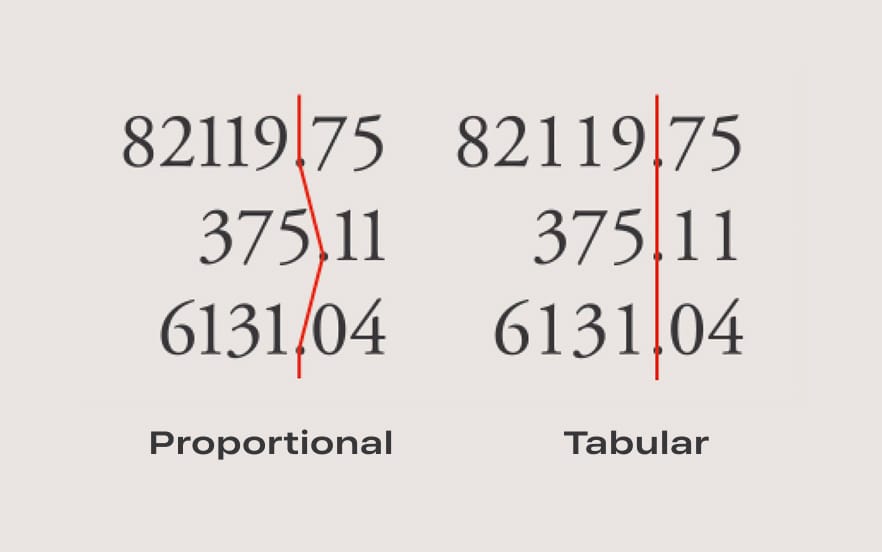
Recently, I've seen this tweet (still calling it Twitter) that got a lot of likes:
`tabular-nums` should be the default for any number that updates ( timers, counters, prices, percentages, scores, live data etc ).
— Soren (@sorenblank) March 2, 2026
you can enable this tnum OpenType feature using the CSS property `font-variant-numeric`.
.tabular-nums {
font-variant-numeric: tabular-nums;
} pic.twitter.com/I2ccphAAeE
This is also available on iOS. The simplest way of achieving tabular numbers is using the .monospaced() or .monospacedDigit() modifier on SwiftUI's Font objects. The former makes every character monospaced, the latter only applies the effect on digit characters.
Font.custom("Inter-Bold", size: 18.0).monospacedDigit()If you're using custom fonts, make sure that the font you are using supports tabular numbers.
On UIKit, if you're using the system font, this is also easy to achieve. Just use monospacedDigitSystemFont(ofSize:weight:) static method on UIFont.
If you're using a custom font, you need to do more work. We need to find the font attribute value key, so we can enable the feature on our font file. Apple has a page that lists font feature attribute keys and values:

If you don't know that your font supports tabular numbers, you can always check through the font foundry's website, or in code. To list all the features supported, you need to print all the values using CoreText's CTFontCopyFeatures() function.
let font = UIFont(name: "Inter-Bold", size: 16.0)
let features: NSArray = CTFontCopyFeatures(font)!
print("FONT FEATURES = \(features)")
This will print a loooong list of named keys and values that are listed on the reference website mentioned above. We only need to see that the Number Spacing type is present and it also has the Monospaced Numbers value under it.
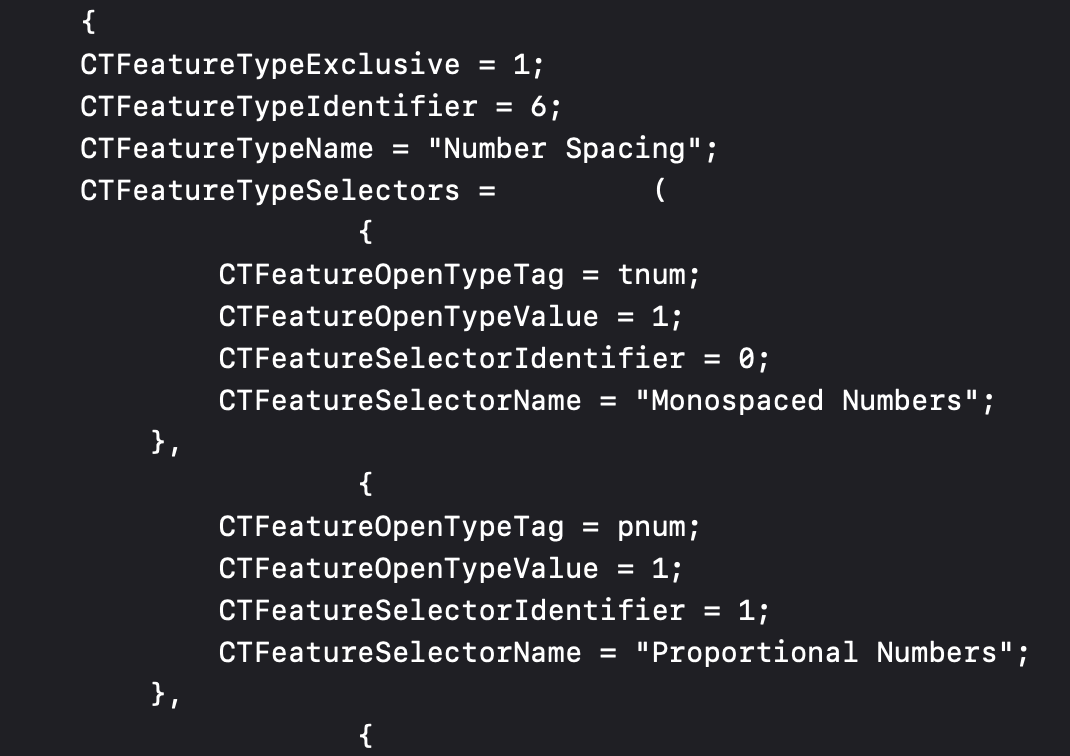
Once you have a confirmation, find the fontDescriptor of your font object, and add featureSettings attributes:
let resultFont = countLabel.font.fontDescriptor.addingAttributes([
  .featureSettings: [
    [
      UIFontDescriptor.FeatureKey.type: kNumberSpacingType,
      UIFontDescriptor.FeatureKey.selector: kMonospacedNumbersSelector,
    ]
  ],
])

// 0.0 means the size from the descriptor will be used.
let fontWithTabularNumbers = UIFont(descriptor: resultFont, size: 0.0)
The result is not jumping, vertically aligned, beautiful numbers: